Sunday, April 15, 2018

Professional development: Google Classroom setup

Image result for google classroom
Image credit: https://commons.wikimedia.org/wiki/File:Google_Classroom_Logo.png
To start off my professional development series I am going to work on showing the tool google classroom.

image credit: 

Google classroom is a powerful tool that is part of the google apps for education suite that teachers and administrators can use to hep organize assignments, observations, conduct professional development and more. I liken it to social media for the classroom, as it is more a communication tool than what some might call an LMS (Learning Management System) like Blackboard, Schoology, and others. Classroom does not have all the bells and whistles of a true LMS but it is a powerful tool in helping kids learn organization and communication skills.

To start off the Classroom series I show you how to set up classroom as a classroom teacher and how to invite students. Some important things to keep in mind as you start your journey into Google Classroom.

  • When first signing up make sure to sign up as a teacher. If you sign up as a student you don't get access to all the features and to switch your account takes some work
  • There are 2 views, Teacher  & Student. It can be frustrating if you want/need to show students their view
  • Be prepared for an upswing in the amount of email you get.
    • You can manage this in the settings by turning off email notifications
As I mentioned earlier Google Classroom is more a communication tool than a true LMS. It has some features of an LMS like:
  • Assignment distribution and turn in
  • Interactive questions
  • Messaging (Announcements)
  • Google Calendar and Google Drive syncing
However currently some of the features it is lacking are:
  • Linking to an LMS or IMS (information management system) like Skyward
  • One stop shopping for grades, payments, announcements, etc.
  • School and district info
There are numerous ways classroom teachers and administrators can use google class. Here are a few suggestions (please share how you are using it as well):
Classroom Teacher:
  • Classroom homepage
  • Classroom Communications
  • Assignment distribution and collection
  • Formative assessment (questions)
  • Classroom library (about tab)
  • Lesson Planning 
Administration:
  • Professional development portal
  • Evaluation portal
  • School resource library
  • Staff meeting portal
  • Observation document repository
I am sure there are many more uses to which I can't wait to hear more about. 

Too start off these series I have a video below on how to setup Google Classroom. In future videos I will show you how to utilize the 3 tabs (Stream, Students, About), as well as how to submit feedback.




Professional Development series

One part of this blog is to start a tag/label called professional development. the goal is to start expanding my skills in helping teacher perfect their craft. Under the professional development tab you will find short posts, videos, links, etc. on tools, sites, techniques I use in my practice. I will show how to use them and break down their parts as well as share how I use them in/with my classes.
I want to say as I start this new journey that I am by no means a definitive expert on technology in the classroom. That being said please if you notice things that could be done a different way or are not quite right please share your comments. Also, please please please share how you use the tools I am sharing as more heads are better than one. As my principal says "We are all in this together" and I know that I could use your help in expanding the tool box I use in my teaching craft.

Lastly I want to encourage your suggestions of not only tools you would like me to add to this series but also on how I can improve. I have been doing screencasts in the classroom as part of the "Flipped Classroom" model. I have received some wonderful feedback from my students on how to improve my videos and I hope to get some great feedback from you.


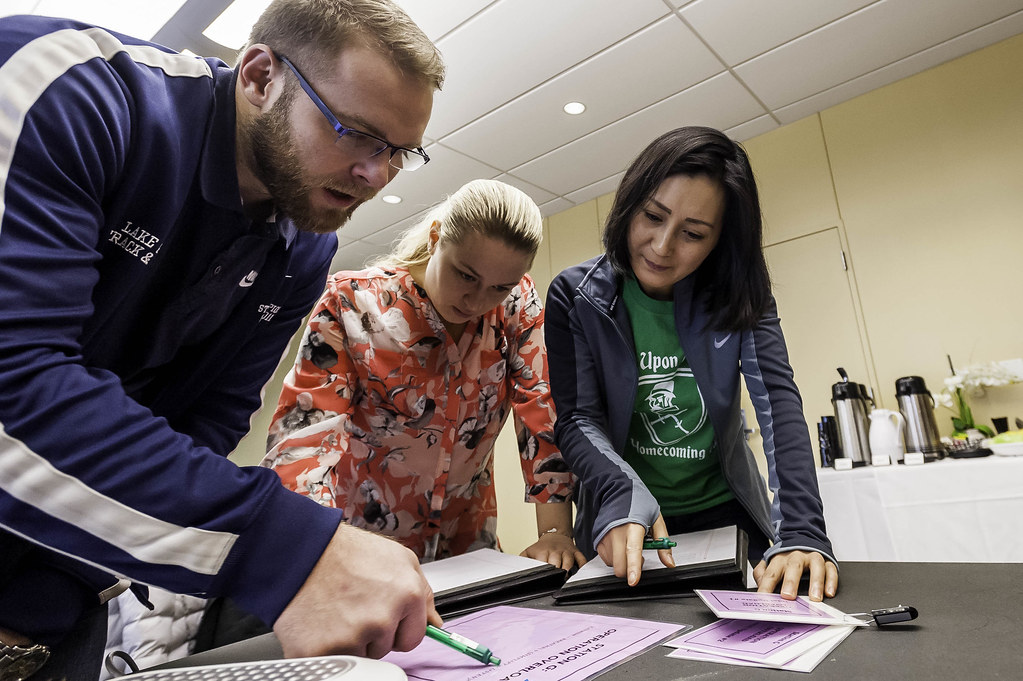
Image result for professional development
Image credit: https://www.flickr.com/photos/codnewsroom/32649529442

Sunday, April 1, 2018

Gone but not forgotten

As  you can probably tell I have been gone for awhile but I haven't forgotten about my blog. I will be picking up my blogging work this year in earnest as the summer gets closer and time becomes more free.

A little bit about what I have been up to over the last 5+ years since my last post. I have been working as a middle level Technology/Engineering/Robotics teacher. I have also been working as a technology PD leader for my school and district helping teachers better integrate technology into their practice. Helping teachers perfect their craft through integration is my passion and what I hope to use this blog for moving forward. I also hope to use this blog to have some discussion and discourse about the use of technology and when and where it is appropriate to use technology in the classroom. I also hope to hear from those of you out there about your uses of technology in the classroom as I want to learn from you as well.

Recently our district went 1:1 with Chromebooks. It has been an interesting transition from computer labs to 1:1 computers for every student. I still work in a computer lab but am looking at changing over from a traditional lab to one that enables students to sync up their Chromebooks with an AWS server. I am excited for the possibilities this brings to my classes both in and out of the classroom. Anyone out there currently use AWS or something similar and can give me some feedback or advice or thoughts that would be greatly appreciated.

So before I leave you today I want to sure something I am doing with my classes that is making a difference in getting students to engage with learning how to manage a project. I am doing what is called 20% time. I model it after a story I heard about Google giving their employees 20% of the day to work on a project that they enjoy. We have what we call a late start Monday where we meet with other teachers in our building and/or district to align curriculum, plan out unit and lessons, and other stuff normally relegated to after school or other off times. This is see shortened periods for our kids which amount to about 20% of a students time in my class. I start off the semester with a definition of what 20% time is and then move into a couple of weeks helping students choose a project or skill they would like to focus on. From there I teacher how to use a Gant Project Planner found in Excel to manage their project. Then I let them go on their work for the rest of the semester. Students work on projects ranging from planning a composting project at school, to soccer skill development, to programming, to typing, to vlogs, and much more. This is just my first year at trying this but what I am finding is that kids enjoy the time to focus on their likes/interests and often times what they are doing relate back to what we are learning about in my classes. It also gives me more time to see their passions as well as work with those kids who need a little extra attention/differentiation during the week because if students are done with the lesson or work I have given them for the day then they know to work on their 20% time project. A book you can read (I am just starting it) is called "The 20time project: How educators and parents can launch Google's formula for future-read innovation" by Kevin Brookhouser. I hope to get some more ideas on how to grow and improve this time so kids.

I welcome your feedback and suggestions.

Tuesday, August 14, 2012

My first video for my flipped class

Attached, linked, embeded in this post is my first video for my flippled classroom. It is rather long and I am already thinking I might cut it down but thinking I might like some feedback before I go and re-record.
I will be using this video to serve 2 purposes. One to introduce to concept of watching videos at home as well as how to take notes while watching the video. After a talk about note taking and introducing the cornell notes format students will watch the video as a class to practice watching a video and taking notes. I will be guideing a discussion around what they think is important and how they know it is important as well as the concept of "pausing" the teacher.

I welcome your feedback and suggestions in the comments. Click on the link below to view the video as it is a little too big for Blogger to handle.

NXT Piece Basics

Saturday, August 4, 2012

New thoughts on teaching

It has been awhile since I have posted to this blog. I have been busy with changing my class structure, room, starting up an FLL team, and most importantly doing some family time. Although no I am on a new adventure that I would like to share and hopefully get some thoughts on as I travel down this road.  Over the next year I will be working on flipping my classroom for my two robotics classes and possibly my tech 1 class.
I have tried something like this in the past with mixed results. I have created video intros to topics and skills students then work on in class watching a video trainer. What I found was that students just went to the video trainer and I still ended up lecturing or doing whole class instruction. I would really like to get away from traditional stand and deliver as I find that I tend to ramble on and on and loose my students. I also find that I am not able to diffrentiate my instruction very well either. Although I am finding that even with flipping/reverse teaching I find that I am still struggling with meeting the needs of my special ed, Ell, 504, etc. students. I am hoping that as I venture down this road that I can get support from you as well as my colleagues.
Ok I am off to do some reading in the book Flip your classroom: Reach every student every day. I look forward to your comments, feedback, and guidence on this "flipping" journey :)

Wednesday, May 20, 2009

Tech Wednesday: Cheap voting pods

I recently found a website called http://www.textthemob.com/ through a blog/podcast I subscribe to called TechTalk4Teachers. The site was mentioned as Mr. Grissom as the tech pick of the week. The site enables you to set up either multiple choice answers or simple discussion questions that people can respond to via their the text messaging feature of their cell phone. One of the best parts about this site is that as people send in their responses to the site, it automatically updates the graphs and discussion in real time. The other best part about this is that it is all free, only ask for a simple donation if you find the site useful. Although for the price of a small donation to the site the savings to you and your school/district can be huge.

There are some potential drawbacks that are not the big in my opinion but are worth noting. Even though there is no fee for the site standard text messaging rates do apply from the phone company (if you/your students are not on an unlimited texting plan). I don't see this as a huge problem because most kids I surveyed are on an unlimited plan. The other drawback is that it does limit those students who don't have cell phones to using a computer or borrowing a friends. Because they can borrow a friends (one thing they are apt to share) it negates the need for students to access the web to submit their answers. The only other drawback is the limited selection of question types one has to choose from. However I don't see this as a huge drawback as well in that mostly this would be used to get quick feedback to help guide instruction rather than for a formal assessment.

One of the things that is all the rage now are the interactive voting pods that are accompanied with interactive whiteboards and other presentation devices. These devices can cost thousands of dollars and need a ton of setup time and training. Now don't get me wrong these devices are useful and are starting to show some impact on student learning. However with textthemom.com you are able to do the instant voting and discussion portion of this, albeit in a limited fashion, with just a simple internet connection and student cell phones. Now I can hear the cat calls from the balcony already, "Let kids use their cell phones in class? You have to be kidding." No I am not kidding. I know that until recently I was constantly fighting with kids to keep their cell phones out of sight, turned off, etc. But then I start to slowly allow them to use them. First as research devices and simple calculators also as digital cameras in my digital photography class, know I am starting to use them with textthemob.com. What I have found is that as I allowed them to use them in class for academic reasons my problems with them decreased to almost nil. Plus I am hitting one of our state tech standards by teaching students the ethical and appropriate use of technology to solve problems and accomplish tasks.


Wednesday, May 6, 2009

Tech Wednesday: Groovin communication

This is tech Wednesday for 5-6-09. There have been a few of you asking me more about Microsoft Groove lately and how I can see it being used or how I use it. Thank you for sharing your responses in how you have been using it or how your students have been using it, even if it was by accident.

My building started exploring Groove as a way to communicate between classrooms and office staff in lieu of phones. We thought it would be better as you wouldn't have the constant interruption of the phone ringing etc. We worked on it for a couple of months but found that it was more cumbersome than the good old phone. If you were sitting at your computer constantly it worked fine but as any good teacher knows you can't be tied to your computer all the time. What we did find it useful for was collaboration between colleagues on projects. As you are able to share documents, create workspaces, etc. through Groove you are able to have a mini workspace where you can edit, comment, and share, information about documents in real time and at less cost than a program such as MS SharePoint. The pluses with Groove are that if you use the public server you have much less hassle with passwords, etc. All one needs is Groove installed on all machines and then send out invite for those who you want to join your workspace. However using the public server might pose issue for security that one who is more techie than I might comment on.

Another way I am starting to experiment with using Groove is for in-class communication with students. As one of our readers pointed out in one of his comments my students (as did his) found groove by "accident" on their machines. At first I panicked, should I let students know about this, what if they get distracted, ahhhh. But then the teacher/guide took over and saw this as an opportunity to work with students in their realm so I let them go. What I found was that there was and still is some distraction going on with chatting but I have seen students use it to ask me and each other questions about assignments, share assignments with me and others (on group projects). It has been interesting watching them play with this new tool. They have taken the time to make it theirs and find ways to use parts of it that meet their needs and ignore the parts they don't need. Now I know some of you may balk at this in saying why would students in the same classroom need to use a chatting tool to communicate with each other on a project. At first I would agree with you but then again we have to think about who we are teaching. Our students (digital natives) are more comfortable communicating electronically than face to face, so if it keeps them engaged in learning and helps them get the project done then I am all for it. I can say this and not feel like I need to turn in my teaching certificate because the objectives for my class center on showing students how to use technology ethically and to solve problems. Now if I was a communications, social studies, writing, teacher I might think differently. One other cool way students are using groove is to turn in assignments to me. Instead of having to post an assignment to our district portal or print it out they simply Groove it to me. Now I only have 2 or 3 students who are doing this but it is serving as an eye opening trial for me. I am actually considering having students next year use groove in my classes have groove accounts and hand in assignments that way rather than online or in a hand in box. It will enable me to give them faster feedback on their work and will also cut down on the paper I use. I can also see this a facilitating the writing/review process as well in giving students a "high tech" way to do peer editing of their work which I find hard to get them to do unless I force them to do it.

I love to see your comments so if you are using or know of someone who is using groove I encourage you to share your ideas here.